
Devices running obnizOS 7 or later can execute Lua scripts on the device itself.
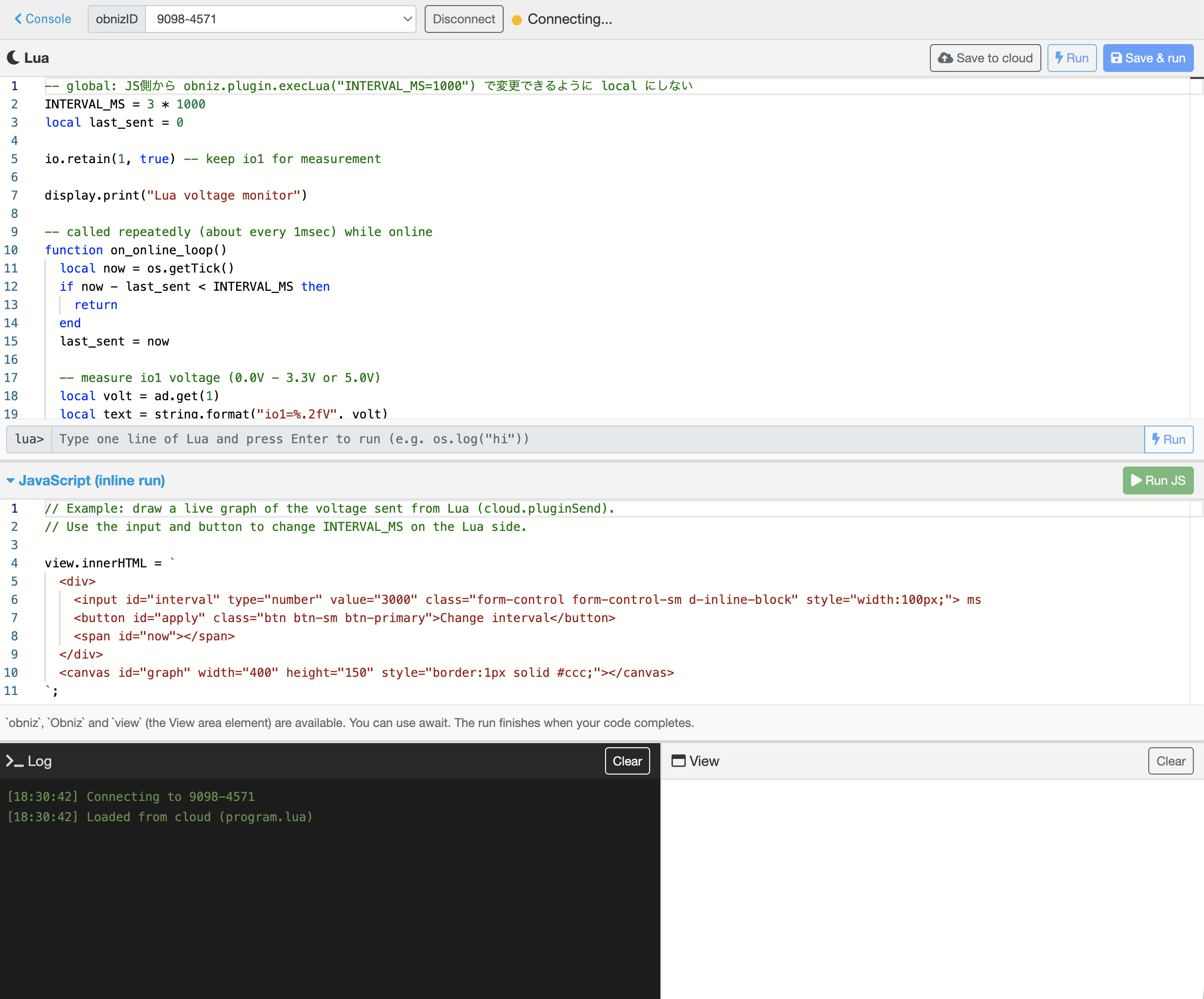
With the Lua Editor on obnizCloud, you can edit Lua in your browser and transfer/run it on your device, all in a single screen.
Opening the Editor
Open "Lua Editor" from the left menu of the developer's console. Sign-in is required.
When the editor opens, it automatically connects to your registered obniz device. Switching the device with the selector at the top reconnects to the newly selected device.
Requirements
- The device must run obnizOS version 7 or later
- When connected to a device with a version lower than 7, the Lua pane becomes read-only. You can update obnizOS (OTA) right from the banner shown at the top of the screen (device owner only)
Editing and Running Lua
Edit Lua in the main editor pane and run it with the following buttons.
| Button | Action |
|---|---|
| Run | Runs the Lua on the device instantly without saving. It is lost after reboot |
| Save & run | Saves to the device flash memory and runs it. It runs automatically after reboot |
| Save to cloud [Ctrl]+[S] | Saves to the cloud storage tied to the obniz ID. It is restored the next time you open the editor |
When you press "Run", the Lua being edited is also saved to the cloud automatically.
The lua> input below the editor lets you run a single line of Lua on the spot. It is useful for debugging, such as rewriting global variables of the running script.
Note that saving to flash (Save & run) is not available on devices without storage. In that case the button shows "No save on this device".
Inline JavaScript
In the JavaScript pane below the Lua editor, you can write and run JavaScript in the browser. The following variables are available in your code.
obniz: the connected Obniz instanceObniz: the obniz.js classview: the HTMLElement of the View area at the bottom right, which you can render DOM into
await is available, and the run finishes when your code completes (registered event handlers keep working afterwards).
Pressing "Run JS" also saves the JavaScript to the cloud storage tied to the obniz ID, and it is restored the next time you open the editor.
Lua and JavaScript Working Together
Data sent with cloud.pluginSend() on the Lua side can be received with obniz.plugin.onreceive on the JavaScript side.
In the other direction, JavaScript can execute arbitrary Lua on the device with obniz.plugin.execLua().
The default sample code demonstrates this interaction.
- Lua: every 3 seconds, measures the io1 voltage, shows it on the display, sends it to JS with
cloud.pluginSend(), and POSTs it to an external server over HTTP - JavaScript: draws a live graph of the received voltage in the View area, and changes the sending interval with
obniz.plugin.execLua("INTERVAL_MS=...")via the input and button
Log
The log area at the bottom shows:
- Connection state changes
- Data received from
cloud.pluginSend()on the Lua side (plugin <-) - Lua runtime errors on the device (
obniz.plugin.onError) console.logoutput of the inline JavaScript
About Storage
Lua and JavaScript are each saved to the cloud storage tied to the obniz ID. Unlike HTML programs and block programs, sign-in is required for reading and writing.