
🎯
Goal
Understand the role of the Qwiic terminal on Intelligent Edge Kilo and how to connect to it.
Overview
Intelligent Edge Kilo (Kilo) is equipped with a Qwiic terminal for expansion.
In addition to connecting Qwiic and compatible devices, it can also be used as digital IO or analog IN.
Wiring and Connection
❗
You can connect sensors and communication cables even while Kilo is powered on.
However, contact with metal parts or incorrect connection of the power lines may damage the equipment.
Always check the voltage specifications of the device you are connecting, and work in a safe environment.
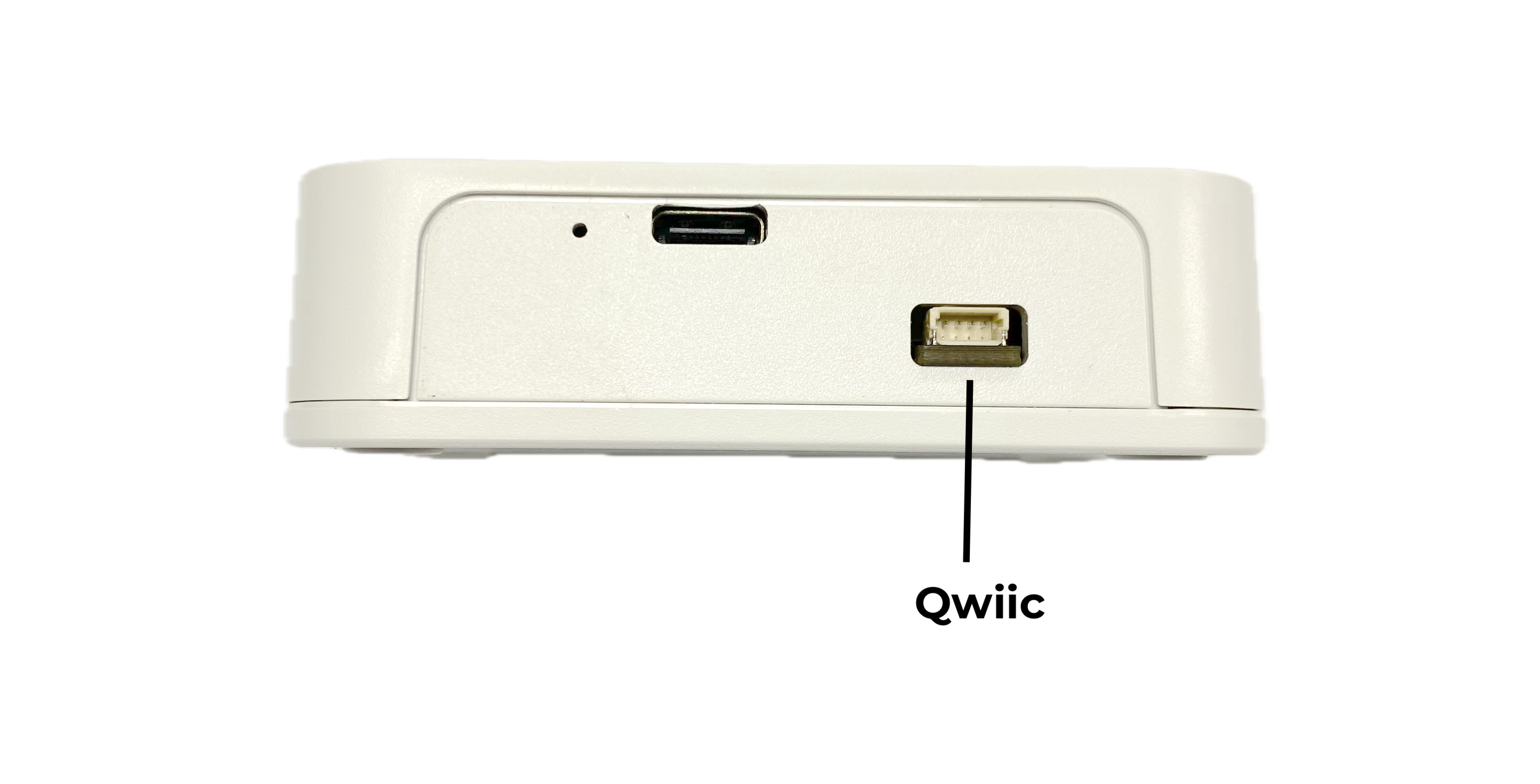
Connect a compatible Qwiic or Qwiic-compatible cable to the "Qwiic" terminal on the side of Kilo.
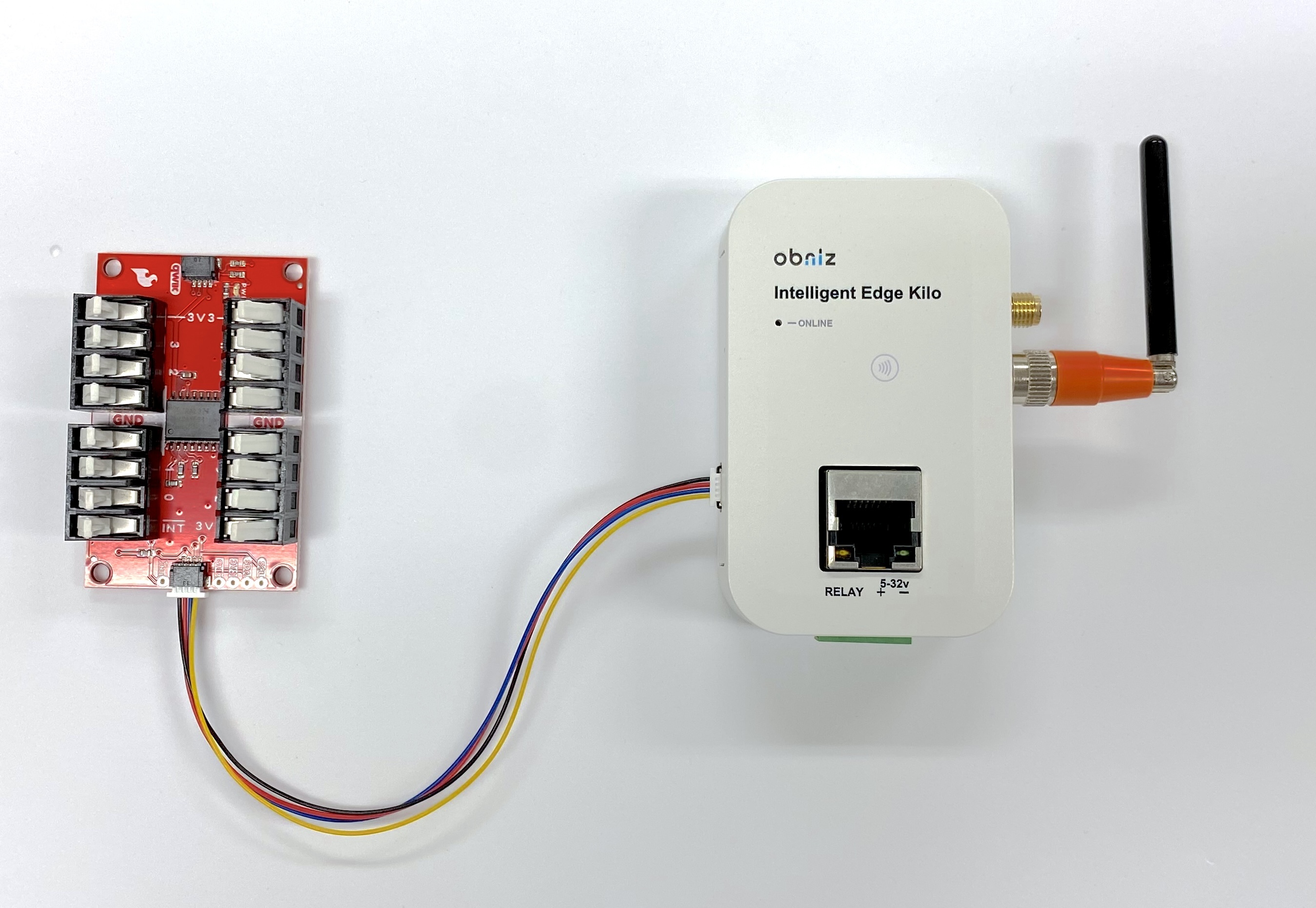
Qwiic-compatible devices mainly use I²C communication, allowing multiple devices to be connected on a single bus.
You can use one or multiple Qwiic-compatible sensors and modules sold by various manufacturers.
The Qwiic terminal consists of 2 power lines and 2 signal lines. The signal lines are connected directly to the internal microcontroller and can each be used individually as digital IO or analog IN.
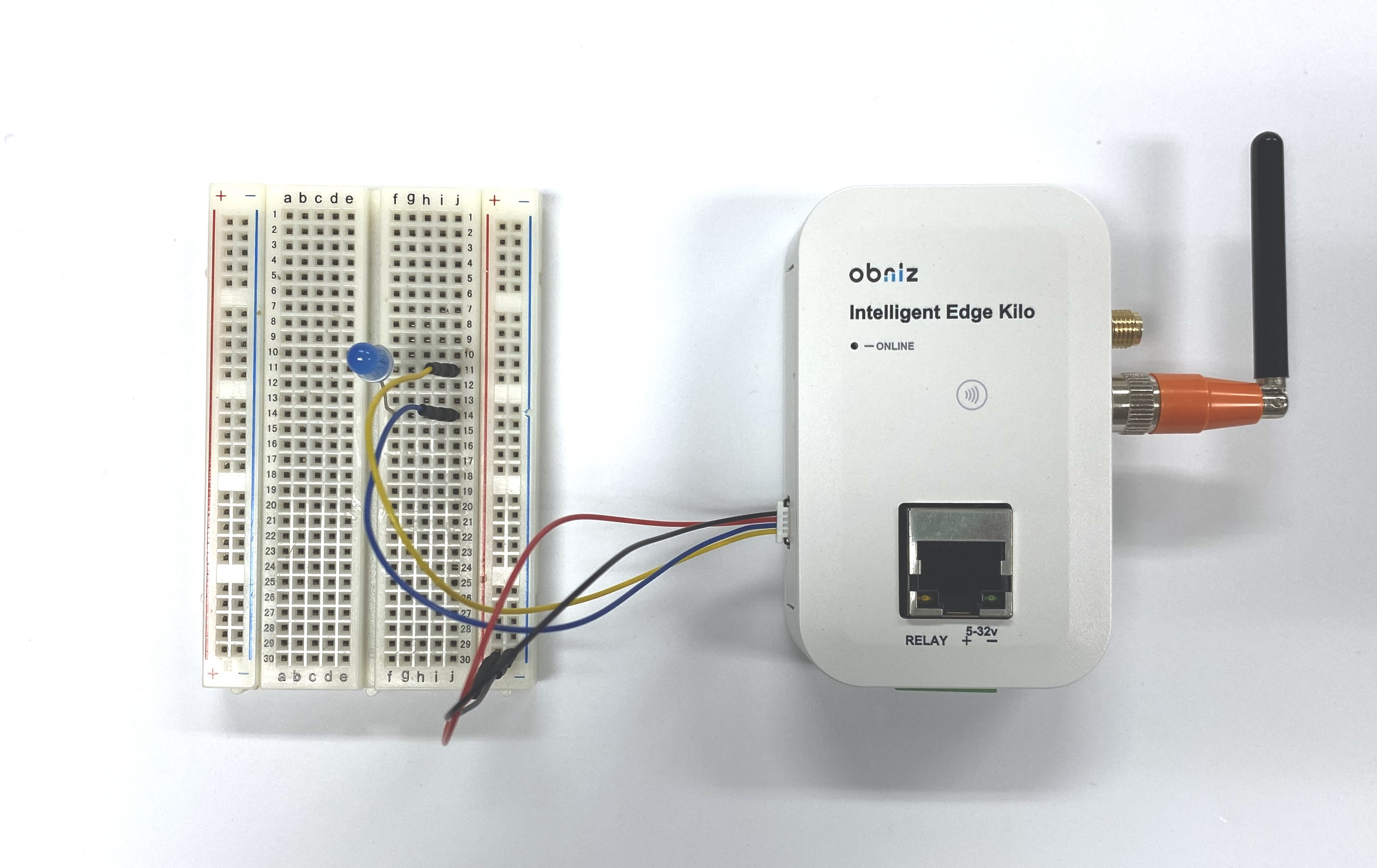
| Pin | IO Function |
|---|---|
| 1 (black) | GND |
| 2 (red) | 3.3V output (supplied from Kilo) |
| 3 (blue) | IO1 / AD1 |
| 4 (yellow) | IO2 / AD2 |
⚫︎ Available Power
The Qwiic power line is shared with Kilo's internal power bus.
The available current varies depending on Kilo's operating conditions.
- Under normal operation (LTE-M connected, Wi-Fi/Bluetooth disabled), approximately 500mA is available.
- Because it varies depending on factors such as signal conditions, use approximately 100mA at most as a guideline for safety.
⚠️
- If too much power is consumed, Kilo's internal protection circuit activates, shutting down the entire power line and causing a restart.
Operation and Control
| Timing | Signal Line State |
|---|---|
| Immediately after startup | Hi-Z (high impedance). The signal lines are disabled. After a restart, the previous state is not retained; the lines return to the state they were in after power-on. |
| After software configuration | Operates as output/input/analog input according to the configuration. |